Phone or computer? How to plan your video game controls
Unity outlines how developers should plan game controls for phones, computers, and optional controllers to ensure accessibility and comfort across devices.
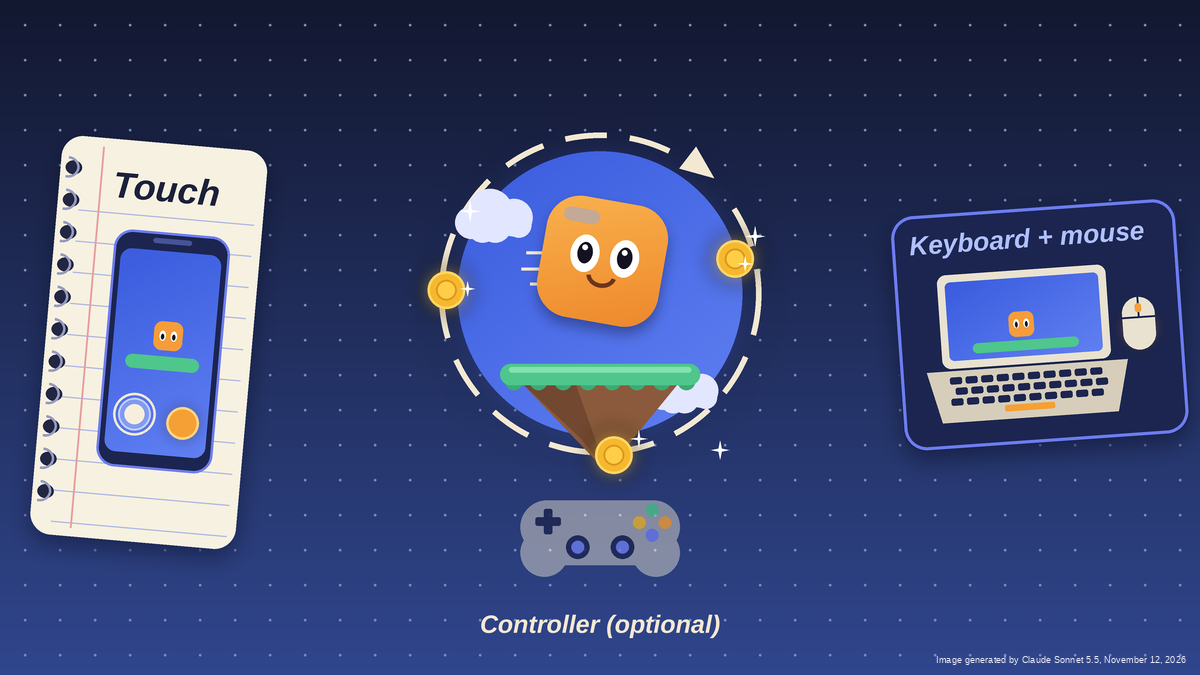
Video game controls determine how players interact with your game, shaping both gameplay and comfort. Whether tapping a phone screen, pressing keys, or using a controller, each input method changes how players experience your game. Unity Spark, the company’s AI-native creation platform, lets developers describe controls in plain language without writing code, making it easier to plan for multiple devices from the start.
On phones, touch controls work best for taps and short sessions, but require careful button sizing and spacing to avoid accidental inputs. The Xbox Accessibility Guidelines recommend touch targets of at least 15 mm square and sufficient spacing between buttons. Supporting both portrait and landscape modes ensures compatibility with fixed phone mounts.
For computers, keyboard and mouse inputs suit games with many actions or precise aiming, but may overwhelm players unfamiliar with key layouts. Trackpads, common on laptops, lack the precision of a mouse, so avoid fast pointer movements. Controllers, while optional, should avoid designs requiring simultaneous use of both thumbsticks to improve accessibility.
Unity advises mapping each game action twice—once for touch and once for keyboard-and-mouse—then identifying mismatches like pinch-to-zoom or hover effects. The Xbox guidelines recommend alternatives for multi-point gestures and suggest toggles for actions like sprinting to reduce input fatigue. Testing on both devices helps catch accidental or missed inputs before finalizing controls.